When Your Website's Domain Is Also Your Active Directory Domain: Fixing Apex DNS Conflicts
If your Active Directory domain matches your public website domain, internal users can't reach your site. Here's why it happens and how to fix it on every version of Windows Server.
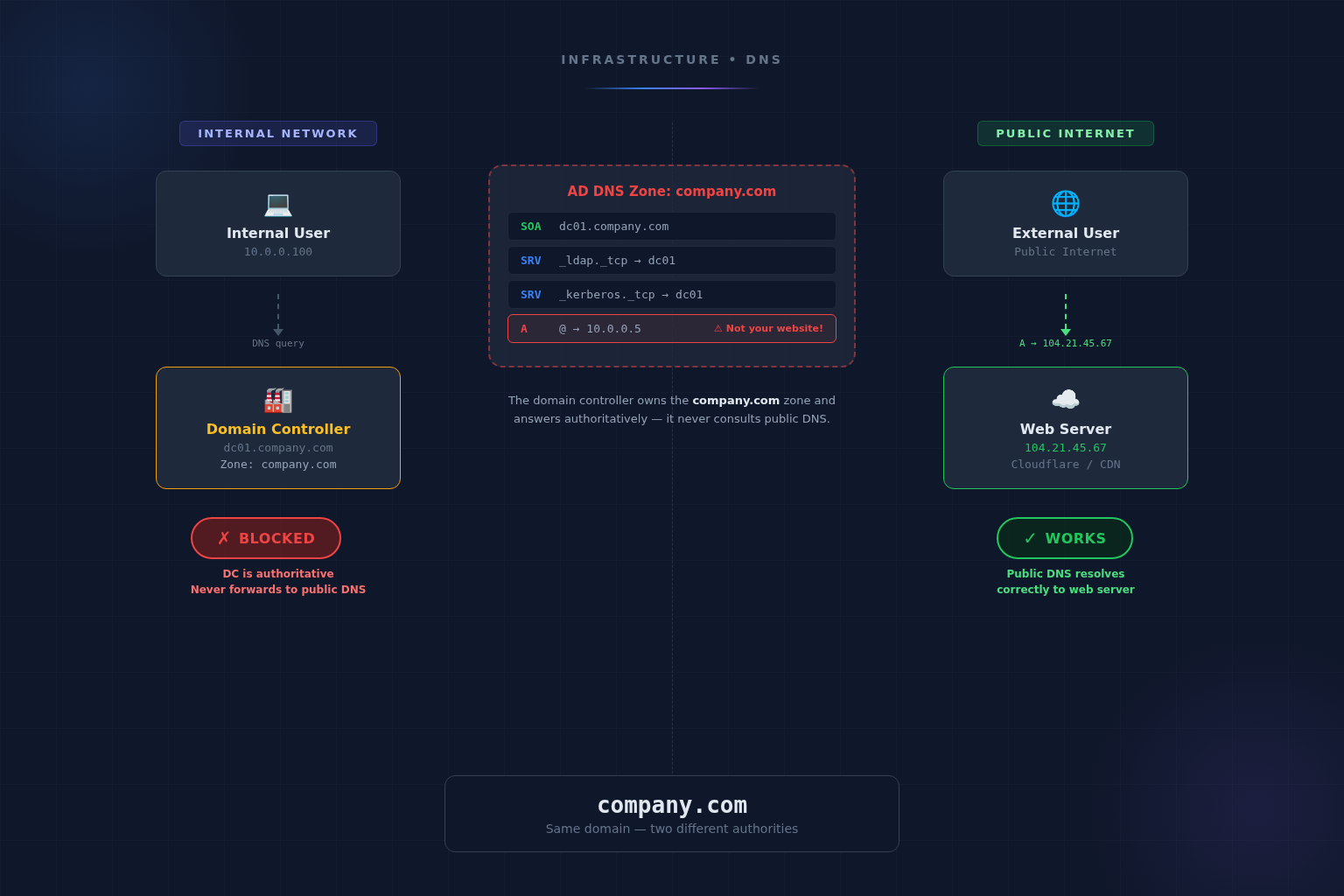
You just migrated your company website to a new host. External visitors load the site fine. Then the helpdesk tickets start rolling in: nobody in the office can reach it. The site works on phones (off Wi-Fi), works from home, works from the coffee shop across the street, but not from the corporate network.
The culprit? Your Active Directory domain is company.com, and your website lives at company.com. Your domain controller thinks it owns that DNS zone, and it’s not wrong. It does, internally. The problem is it doesn’t know anything about your public web server.
This is one of the most common and least understood DNS problems in enterprise environments, and it gets worse when you’re dealing with an apex domain that can’t be changed.
Why This Happens
When Active Directory was set up (possibly a decade or more ago), someone chose company.com as the AD domain name. At the time, this seemed logical. It’s your company’s domain, after all.
The problem is that Active Directory Domain Services (AD DS) creates a DNS zone for its domain name. That zone is authoritative on your internal DNS servers (your domain controllers). When an internal user queries for company.com, the domain controller answers from its own zone, and that zone contains SRV records for LDAP, Kerberos, and Global Catalog services, plus maybe an A record pointing to the DC itself. It does not contain an A record pointing to your web server at 104.21.45.67 or wherever your site is hosted.
Here’s what happens step by step:
External User (Works Fine)
User → Public DNS (Cloudflare/Route53/etc.)
     → A record: company.com → 104.21.45.67
     → Website loads ✓
Internal User (Broken)
User → Domain Controller DNS
     → Zone: company.com (authoritative)
     → No A record for @ (or points to DC)
     → Website fails to load ✗
The DC never forwards the query to public DNS because it believes it’s authoritative for the zone. It doesn’t know it should be, and it’s technically correct. Within AD’s world, it is.
Why the Apex Domain Makes This Harder
If your website were at www.company.com, the fix would be trivial: add a CNAME or A record for www in your AD DNS zone pointing to your web host. Subdomains within an AD DNS zone are easy to manage.
But the apex domain (also called the “bare domain” or “zone apex”), meaning company.com with no subdomain, is a different beast:
-
You can’t CNAME an apex domain. RFC 1034 prohibits CNAME records at the zone root when other records exist there (and AD puts SOA, NS, and SRV records there). This means you can’t just CNAME
company.comto your CDN or hosting provider. -
An A record at the apex in AD DNS creates a conflict. If you add an A record for
company.compointing to your web server, you may break AD services that expect the apex to resolve to a domain controller. Some older applications and services resolve the AD domain name to find DCs. -
The SOA record is locked. The zone’s SOA record is managed by AD. You can’t delegate the apex elsewhere or change the zone’s authoritative server without breaking AD replication.
What It Looks Like When It’s Broken
Here’s what you’ll see from an internal workstation using nslookup:
C:\> nslookup company.com
Server:  dc01.company.com
Address:  10.0.0.5

Name:    company.com
Address:  10.0.0.5        (This is the domain controller, not your website)
Or worse, no A record at all:
C:\> nslookup company.com
Server:  dc01.company.com
Address:  10.0.0.5

*** dc01.company.com can't find company.com: Non-existent domain
Meanwhile, from outside:
$ dig company.com +short
104.21.45.67              (Correct public IP)
Users see timeout errors, browser “can’t reach this site” pages, or in some cases get served the IIS default page from the domain controller itself.
The Solutions (By Windows Server Version)
The fix depends entirely on what version of Windows Server your domain controllers are running. Older versions have workarounds; newer versions have proper solutions.
Windows Server 2008 / 2008 R2 / 2012 / 2012 R2: Manual A Record + Accept the Tradeoffs
These versions have no DNS policy engine. Your only option is a manual A record at the zone apex.
The fix:
- Open DNS Manager on the domain controller.
- Navigate to Forward Lookup Zones →
company.com. - Right-click → New Host (A or AAAA).
- Leave the Name field blank (this targets the zone apex).
- Enter the public IP of your web server (e.g.,
104.21.45.67). - Click Add Host.
# Or via PowerShell (2012+):
Add-DnsServerResourceRecordA -ZoneName "company.com" -Name "@" -IPv4Address "104.21.45.67"
Why this is painful:
- If your web host’s IP changes (common with CDNs, cloud hosting, or any provider using dynamic IPs), you must manually update the A record on every DNS server / DC. There’s no CNAME, no ALIAS, no dynamic resolution.
- If you’re behind a CDN like Cloudflare that uses anycast IPs, you’ll need to pick specific IPs and hope they don’t rotate.
- You’ve now created a split-brain situation where internal and external DNS return different record sets for the same zone.
MXrecords,TXTrecords (SPF, DKIM, DMARC), and any other public DNS records won’t exist internally unless you manually duplicate them.
What you also need to duplicate:
Every public DNS record that internal users or internal mail servers need to resolve must be manually mirrored in the AD DNS zone:
# MX records (so internal mail servers can route outbound mail)
Add-DnsServerResourceRecordMX -ZoneName "company.com" -Name "@" -MailExchange "mail.company.com" -Preference 10

# SPF record (so internal mail servers can validate)
Add-DnsServerResourceRecordTxt -ZoneName "company.com" -Name "@" -DescriptiveText "v=spf1 include:_spf.google.com ~all"

# Any CNAME subdomains your team needs internally
Add-DnsServerResourceRecord -ZoneName "company.com" -Name "app" -CName -HostNameAlias "app.company.com.cdn.cloudflare.net"
This becomes an ongoing maintenance burden. Every time a public DNS record changes, someone has to remember to update the internal zone too. It’s not a question of if this falls out of sync, but when.
Cannot fix on these versions:
- True conditional/split response (returning different answers based on client subnet)
- ALIAS/ANAME records (these are a DNS provider feature, not a Windows DNS feature)
- Automated sync between public and internal zone records
Windows Server 2016 / 2019 / 2022 / 2025: DNS Policies
Windows Server 2016 introduced DNS Policies, which is the proper solution. DNS policies let you return different answers based on the source subnet of the query, the interface, the time of day, or other criteria, without modifying the zone’s actual records.
The fix, DNS Policy approach:
This tells the DNS server: “When a query for company.com comes from the internal network, return the public web server IP. For everything else (AD service queries), behave normally.”
# Step 1: Create a client subnet for your internal network
Add-DnsServerClientSubnet -Name "InternalNetwork" -IPv4Subnet "10.0.0.0/8"

# Step 2: Create a zone scope for web resolution
Add-DnsServerZoneScope -ZoneName "company.com" -Name "WebScope"

# Step 3: Add the public web server A record to the web scope
Add-DnsServerResourceRecord -ZoneName "company.com" -A -Name "@" `
  -IPv4Address "104.21.45.67" -ZoneScope "WebScope"

# Step 4: Create the policy — internal clients querying the apex get the web IP
Add-DnsServerQueryResolutionPolicy -Name "WebsiteApexPolicy" `
  -Action ALLOW `
  -ClientSubnet "EQ,InternalNetwork" `
  -QType "EQ,A" `
  -FQDN "EQ,company.com" `
  -ZoneScope "WebScope,1" `
  -ZoneName "company.com"
What this does:
- Internal clients querying
company.comfor an A record get104.21.45.67(your web server). - SRV record queries for
_ldap._tcp.company.com,_kerberos._tcp.company.com, etc. are unaffected. They continue resolving normally from the default zone scope. - External queries (if any hit the DC, though they shouldn’t) use the default zone scope.
To also handle AAAA (IPv6):
Add-DnsServerResourceRecord -ZoneName "company.com" -AAAA -Name "@" `
  -IPv6Address "2606:4700:3030::6815:2d43" -ZoneScope "WebScope"

Add-DnsServerQueryResolutionPolicy -Name "WebsiteApexPolicyV6" `
  -Action ALLOW `
  -ClientSubnet "EQ,InternalNetwork" `
  -QType "EQ,AAAA" `
  -FQDN "EQ,company.com" `
  -ZoneScope "WebScope,1" `
  -ZoneName "company.com"
Verifying it works:
# List all DNS policies on the zone
Get-DnsServerQueryResolutionPolicy -ZoneName "company.com"

# Test from an internal workstation
Resolve-DnsName -Name "company.com" -Type A

# Should now return your public web IP, not the DC
Advantages over the manual A record approach:
- AD services are completely unaffected: SRV, SOA, NS records in the default scope are untouched.
- You can scope the policy narrowly (only A/AAAA queries for the exact apex FQDN).
- Multiple zone scopes can exist simultaneously for different purposes.
- Policies are replicated across AD-integrated DNS servers.
You still can’t fix:
- Automatic sync with public DNS. IP changes still require a manual update to the zone scope record. But at least the blast radius is smaller (only the scoped record, not the main zone).
The Nuclear Option: Rename the AD Domain (Don’t)
In theory, you could rename your Active Directory domain from company.com to ad.company.com or corp.company.com, freeing up the company.com zone for normal public DNS forwarding.
Do not do this. AD domain renames are:
- Not supported with Exchange Server (any version).
- Not supported with Microsoft Entra Connect (formerly Azure AD Connect).
- Not supported with any version of Skype for Business / Lync.
- Extremely fragile with third-party applications that store the domain name.
- Require every domain-joined machine to be aware of the rename.
- Considered by Microsoft to be a “last resort” operation.
If you’re building a new AD environment, absolutely use a subdomain like ad.company.com or corp.company.com. Microsoft has recommended this since Server 2012. But retrofitting an existing environment is rarely worth the risk.
What About Conditional Forwarders?
A common suggestion is: “Just set up a conditional forwarder for company.com pointing to public DNS.”
This doesn’t work. The DNS server is already authoritative for company.com via the AD-integrated zone. Authoritative zones take precedence over conditional forwarders. The forwarder will never be consulted for any query that falls within the zone.
# This will NOT help — the authoritative zone wins
Add-DnsServerConditionalForwarderZone -Name "company.com" -MasterServers 1.1.1.1, 8.8.8.8
# Error: Zone already exists
What About Stub Zones?
Same problem. You can’t create a stub zone for a name where an authoritative zone already exists. AD owns company.com, full stop.
The Checklist
For IT teams dealing with this right now, here’s the decision tree:
| Windows Server Version | Solution | Effort | AD Impact |
|---|---|---|---|
| 2008 / 2008 R2 | Manual A record at apex + mirror all public records | High maintenance | Low risk if careful |
| 2012 / 2012 R2 | Manual A record at apex + mirror all public records | High maintenance | Low risk if careful |
| 2016 | DNS Policies with zone scopes | Medium (one-time) | None |
| 2019 | DNS Policies with zone scopes | Medium (one-time) | None |
| 2022 | DNS Policies with zone scopes | Medium (one-time) | None |
| 2025 | DNS Policies with zone scopes | Medium (one-time) | None |
| New environment | Use ad.company.com for AD, avoiding the problem entirely |
Low | N/A |
Prevention: Getting It Right From the Start
If you’re standing up a new Active Directory environment today, use a subdomain for your AD domain name:
ad.company.comcorp.company.cominternal.company.com
This keeps the company.com zone completely out of AD’s control. Your domain controllers will create a zone for ad.company.com and leave company.com alone, allowing normal DNS forwarding to public resolvers.
Microsoft’s own documentation has recommended this pattern since Windows Server 2012, and it avoids every problem described in this article.
Conclusion
The “AD domain matches public domain” problem catches organizations because it’s a decision made once, often a decade or more ago, with consequences that only surface when DNS routing matters. It’s invisible until the day you move your website, change hosting providers, or try to put your site behind a CDN.
If you’re on Windows Server 2016 or later, DNS policies give you a clean, non-destructive fix. If you’re on older versions, you’re stuck with manual record management and the ongoing maintenance burden that comes with it. Either way, the fix is achievable. It just requires understanding that your domain controller genuinely believes it’s the authority for your domain, because it is.
For organizations planning infrastructure changes or migrations, this is exactly the kind of hidden complexity that benefits from a thorough DNS audit before any cutover. A five-minute nslookup from an internal workstation can save hours of post-migration troubleshooting.
More from the blog

Want to discuss this topic?
Our team is available to talk about AI strategy, security, and the engineering behind it.